

i18n - Using Crowdin
The i18n system of Docusaurus is decoupled from any translation software.
You can integrate Docusaurus with the tools and SaaS of your choice, as long as you put the translation files at the correct location.
We document the usage of Crowdin, as one possible integration example.
Crowdin overview
Section titled “Crowdin overview”Crowdin is a translation SaaS, offering a free plan for open-source projects.
We recommend the following translation workflow:
- Upload sources to Crowdin (untranslated files)
- Use Crowdin to translate the content
- Download translations from Crowdin (localized translation files)
Crowdin provides a CLI to upload sources and download translations, allowing you to automate the translation process.
The crowdin.yml configuration file is convenient for Docusaurus, and permits to download the localized translation files at the expected location (in i18n/[locale]/..).
Read the official documentation to know more about advanced features and different translation workflows.
Crowdin tutorial
Section titled “Crowdin tutorial”This is a walk-through of using Crowdin to translate a newly initialized English Docusaurus website into French, and assume you already followed the i18n tutorial.
The end result can be seen at docusaurus-crowdin-example.netlify.app (repository).
Prepare the Docusaurus site
Section titled “Prepare the Docusaurus site”Initialize a new Docusaurus site:
npx create-docusaurus@latest website classicAdd the site configuration for the French language:
export default {
  i18n: {
    defaultLocale: 'en',
    locales: ['en', 'fr'],
  },
  themeConfig: {
    navbar: {
      items: [
        // ...
        {
          type: 'localeDropdown',
          position: 'left',
        },
        // ...
      ],
    },
  },
  // ...
};
Translate the homepage:
import React from 'react';
import Translate from '@docusaurus/Translate';
import Layout from '@theme/Layout';

export default function Home() {
  return (
    <Layout>
      <h1 style={{margin: 20}}>
        <Translate description="The homepage main heading">
          Welcome to my Docusaurus translated site!
        </Translate>
      </h1>
    </Layout>
  );
}
Create a Crowdin project
Section titled “Create a Crowdin project”Sign up on Crowdin, and create a project.
Use English as the source language, and French as the target language.
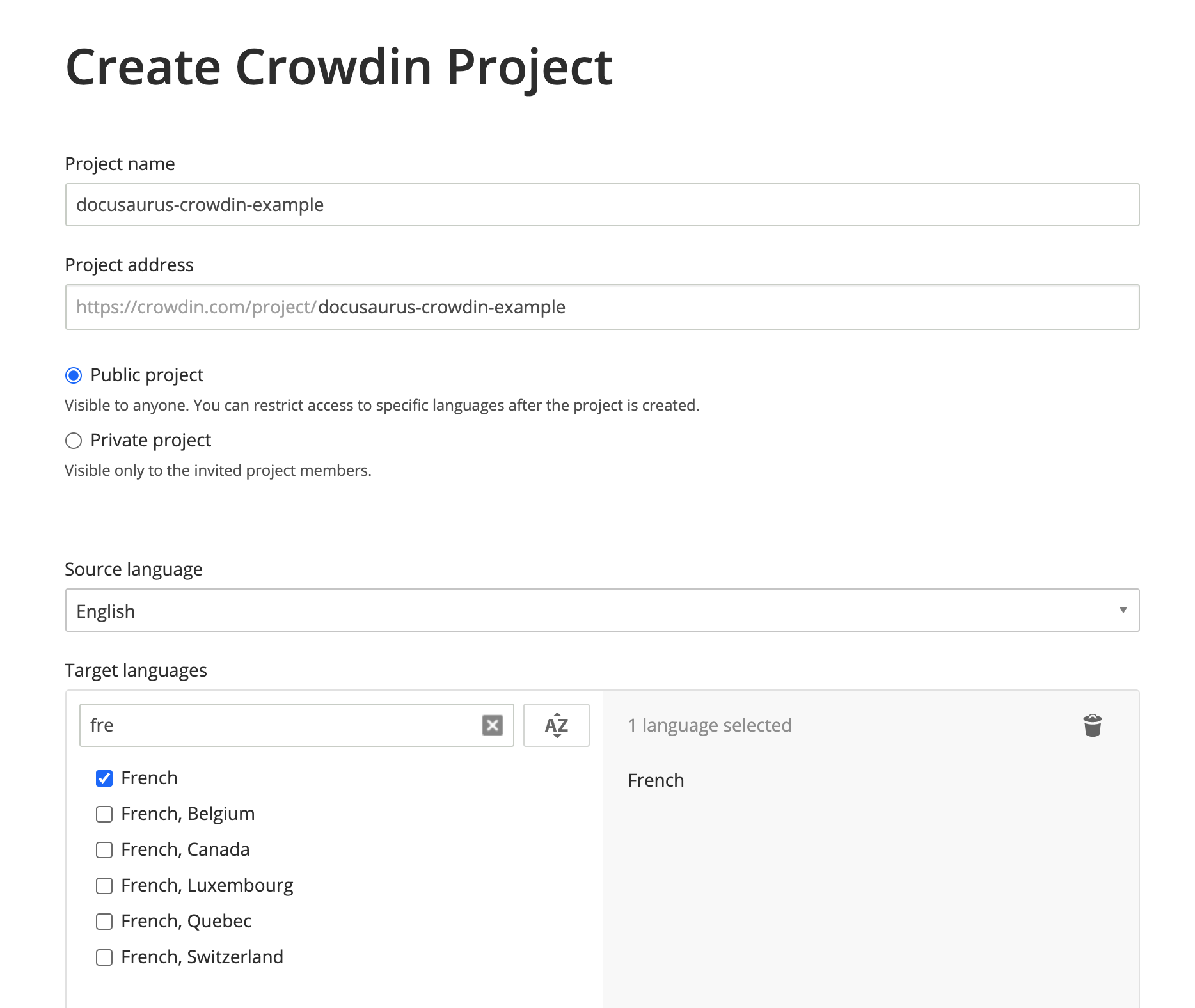
Your project is created, but it is empty for now. We will upload the files to translate in the next steps.
Create the Crowdin configuration
Section titled “Create the Crowdin configuration”This configuration (doc) provides a mapping for the Crowdin CLI to understand:
- Where to find the source files to upload (JSON and Markdown)
- Where to download the files after translation (in
i18n/[locale])
Create crowdin.yml in website:
project_id: '123456'
api_token_env: CROWDIN_PERSONAL_TOKEN
preserve_hierarchy: true
files:
  # JSON translation files
  - source: /i18n/en/**/*
    translation: /i18n/%two_letters_code%/**/%original_file_name%
  # Docs Markdown files
  - source: /docs/**/*
    translation: /i18n/%two_letters_code%/docusaurus-plugin-content-docs/current/**/%original_file_name%
  # Blog Markdown files
  - source: /blog/**/*
    translation: /i18n/%two_letters_code%/docusaurus-plugin-content-blog/**/%original_file_name%
Crowdin has its own syntax for declaring source/translation paths:
**/*: everything in a subfolder%two_letters_code%: the 2-letters variant of Crowdin target languages (frin our case)**/%original_file_name%: the translations will preserve the original folder/file hierarchy
Access token
Section titled “Access token”The api_token_env attribute defines the env variable name read by the Crowdin CLI.
You can obtain a Personal Access Token on your personal profile page.
Other configuration fields
Section titled “Other configuration fields”project_id: can be hardcoded, and is found onhttps://crowdin.com/project/<MY_PROJECT_NAME>/settings#apipreserve_hierarchy: preserve the folder's hierarchy of your docs on Crowdin UI instead of flattening everything
Install the Crowdin CLI
Section titled “Install the Crowdin CLI”This tutorial uses the CLI version v5, but newer versions should keep working.
Install the Crowdin CLI as an npm package to your Docusaurus site:
npm install @crowdin/cli@5Add a crowdin script:
{
  "scripts": {
    // ...
    "write-translations": "docusaurus write-translations",
    "crowdin": "crowdin"
  }
}
Test that you can run the Crowdin CLI:
npm run crowdin -- --versionSet the CROWDIN_PERSONAL_TOKEN env variable on your computer, to allow the CLI to authenticate with the Crowdin API.
Upload the sources
Section titled “Upload the sources”Generate the JSON translation files for the default language in website/i18n/en:
npm run write-translationsUpload all the JSON and Markdown translation files:
npm run crowdin upload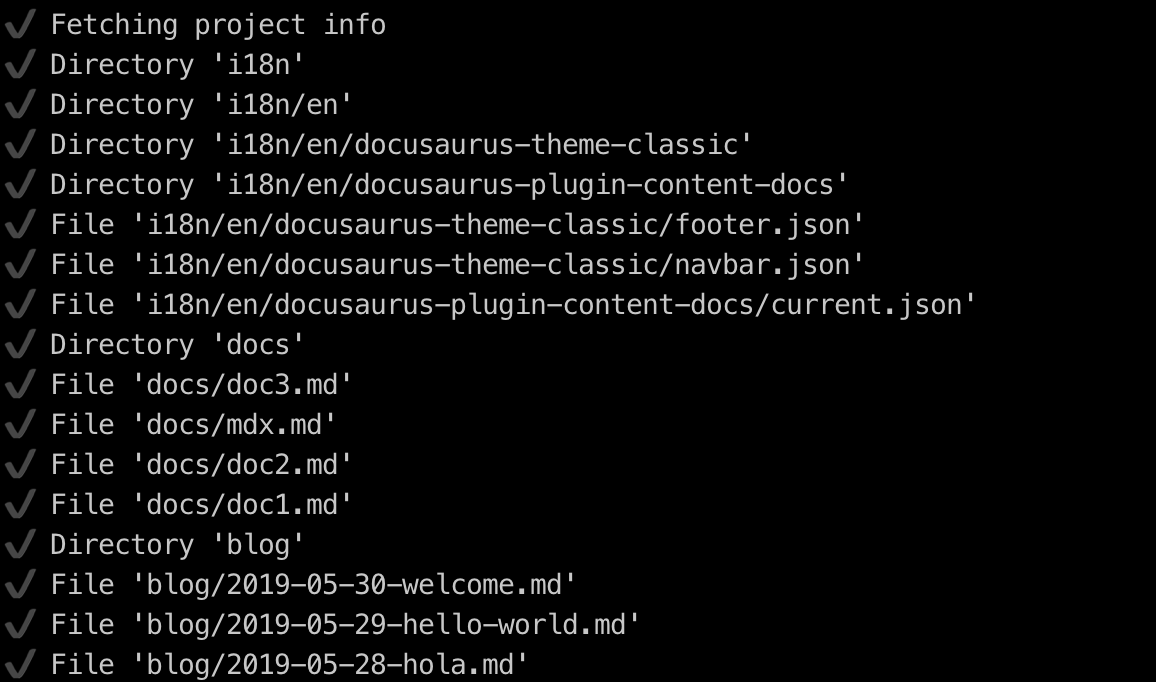
Your source files are now visible on the Crowdin interface: https://crowdin.com/project/<MY_PROJECT_NAME>/settings#files
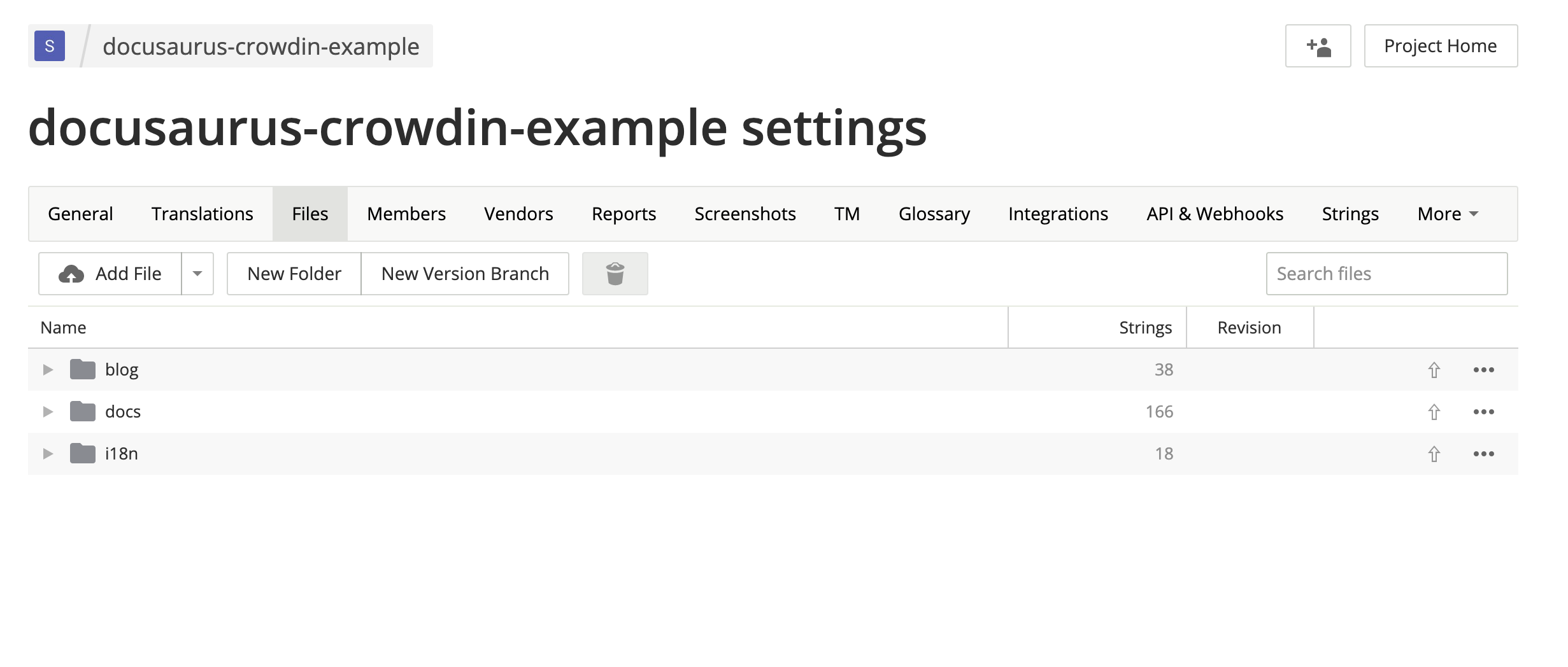
Translate the sources
Section titled “Translate the sources”On https://crowdin.com/project/<MY_PROJECT_NAME>, click on the French target language.
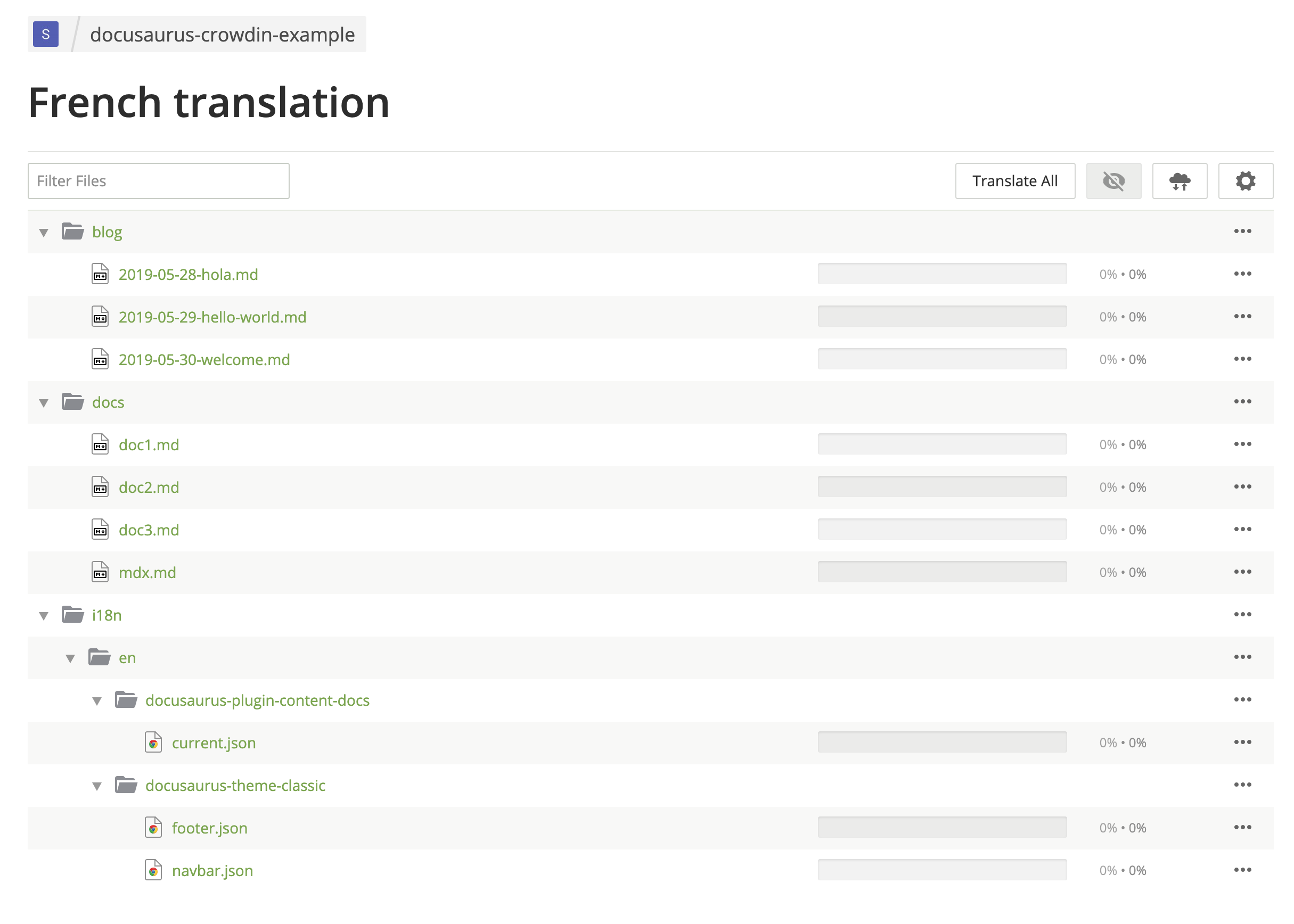
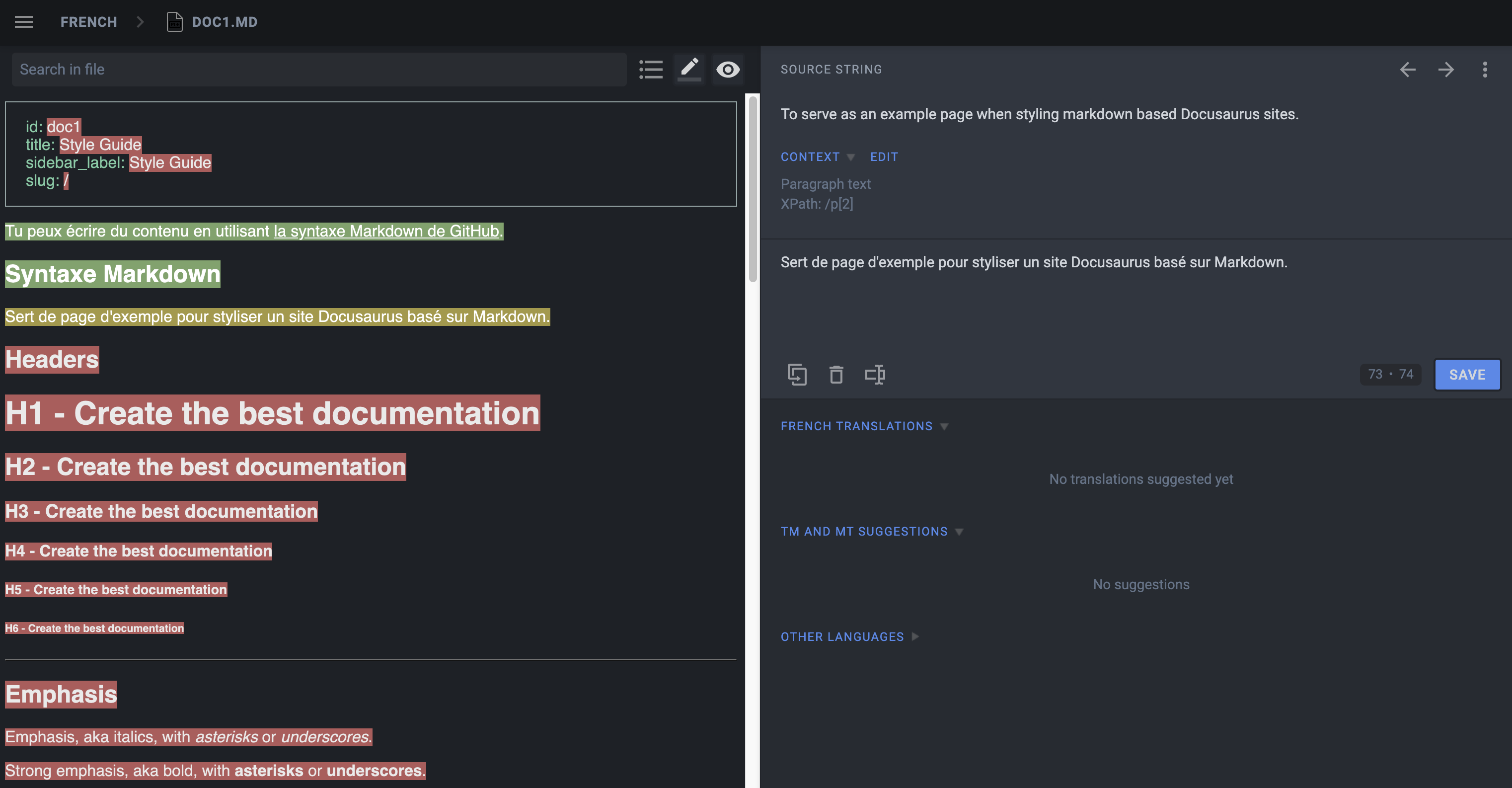
Translate some Markdown files.
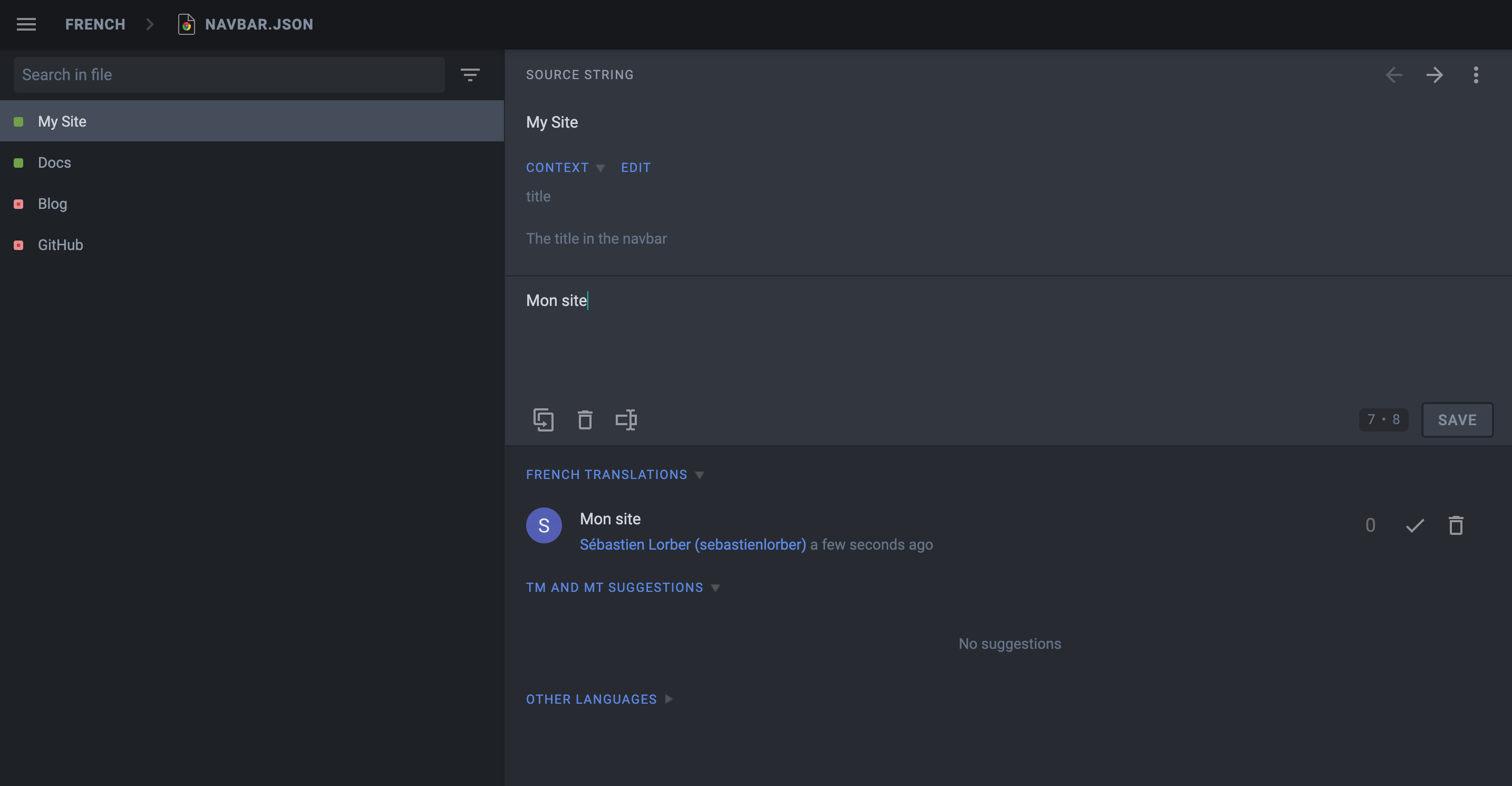
Translate some JSON files.
Download the translations
Section titled “Download the translations”Use the Crowdin CLI to download the translated JSON and Markdown files.
npm run crowdin downloadThe translated content should be downloaded in i18n/fr.
Start your site on the French locale:
npm run start -- --locale frMake sure that your website is now translated in French at http://localhost:3000/fr/.
Automate with CI
Section titled “Automate with CI”We will configure the CI to download the Crowdin translations at build time and keep them outside of Git.
Add website/i18n to .gitignore.
Set the CROWDIN_PERSONAL_TOKEN env variable on your CI.
Create an npm script to sync Crowdin (extract sources, upload sources, download translations):
{
  "scripts": {
    "crowdin:sync": "docusaurus write-translations && crowdin upload && crowdin download"
  }
}
Call the npm run crowdin:sync script in your CI, just before building the Docusaurus site.
Advanced Crowdin topics
Section titled “Advanced Crowdin topics”Crowdin does not support officially MDX, but they added support for the .mdx extension, and interpret such files as Markdown (instead of plain text).
MDX problems
Section titled “MDX problems”Crowdin thinks that the JSX syntax is embedded HTML and can mess up with the JSX markup when you download the translations, leading to a site that fails to build due to invalid JSX.
Simple JSX fragments using simple string props like <Username name="Sebastien"/> will work fine; more complex JSX fragments using object/array props like <User person={{name: "Sebastien"}}/> are more likely to fail due to a syntax that does not look like HTML.
MDX solutions
Section titled “MDX solutions”We recommend extracting the complex embedded JSX code as separate standalone components. We also added an mdx-code-block escape hatch syntax:
# How to deploy Docusaurus

To deploy Docusaurus, run the following command:

````mdx-code-block

import Tabs from '@theme/Tabs';

import TabItem from '@theme/TabItem';

<Tabs>
  <TabItem value="bash" label="Bash">

  ```bash
  GIT_USER=<GITHUB_USERNAME> yarn deploy
  ```

  </TabItem>
  <TabItem value="windows" label="Windows">

  ```batch
  cmd /C "set "GIT_USER=<GITHUB_USERNAME>" && yarn deploy"
  ```

  </TabItem>
</Tabs>
````
This will:
- be interpreted by Crowdin as code blocks (and not mess-up with the markup on download)
- be interpreted by Docusaurus as regular JSX (as if it was not wrapped by any code block)
- unfortunately opt-out of MDX tooling (IDE syntax highlighting, Prettier...)
Docs versioning
Section titled “Docs versioning”Configure translation files for the website/versioned_docs folder.
When creating a new version, the source strings will generally be quite similar to the current version (website/docs), and you don't want to translate the new version docs again and again.
Crowdin provides a Duplicate Strings setting.
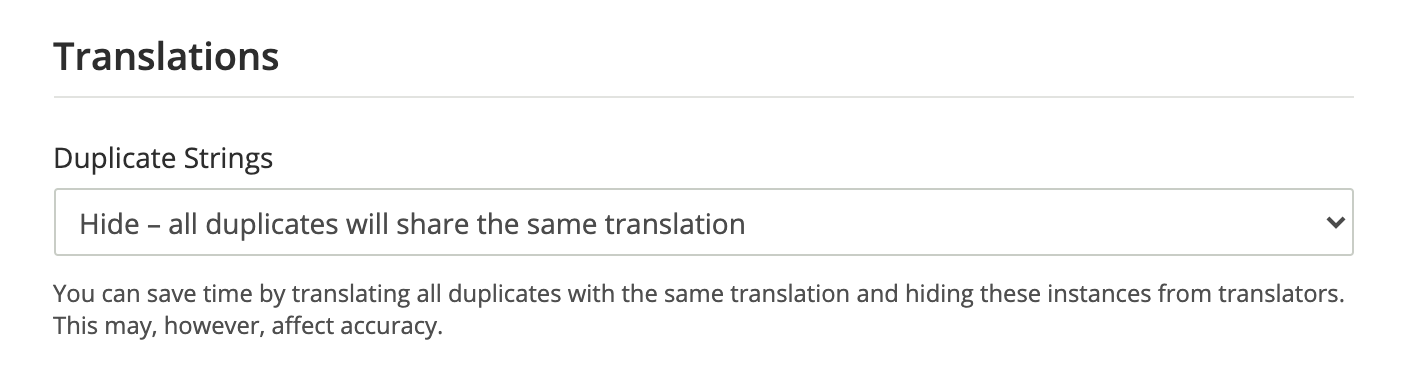
We recommend using Hide, but the ideal setting depends on how much your versions are different.
Multi-instance plugins
Section titled “Multi-instance plugins”You need to configure translation files for each plugin instance.
If you have a docs plugin instance with id=ios, you will need to configure those source files as well
website/ioswebsite/ios_versioned_docs(if versioned)
Maintaining your site
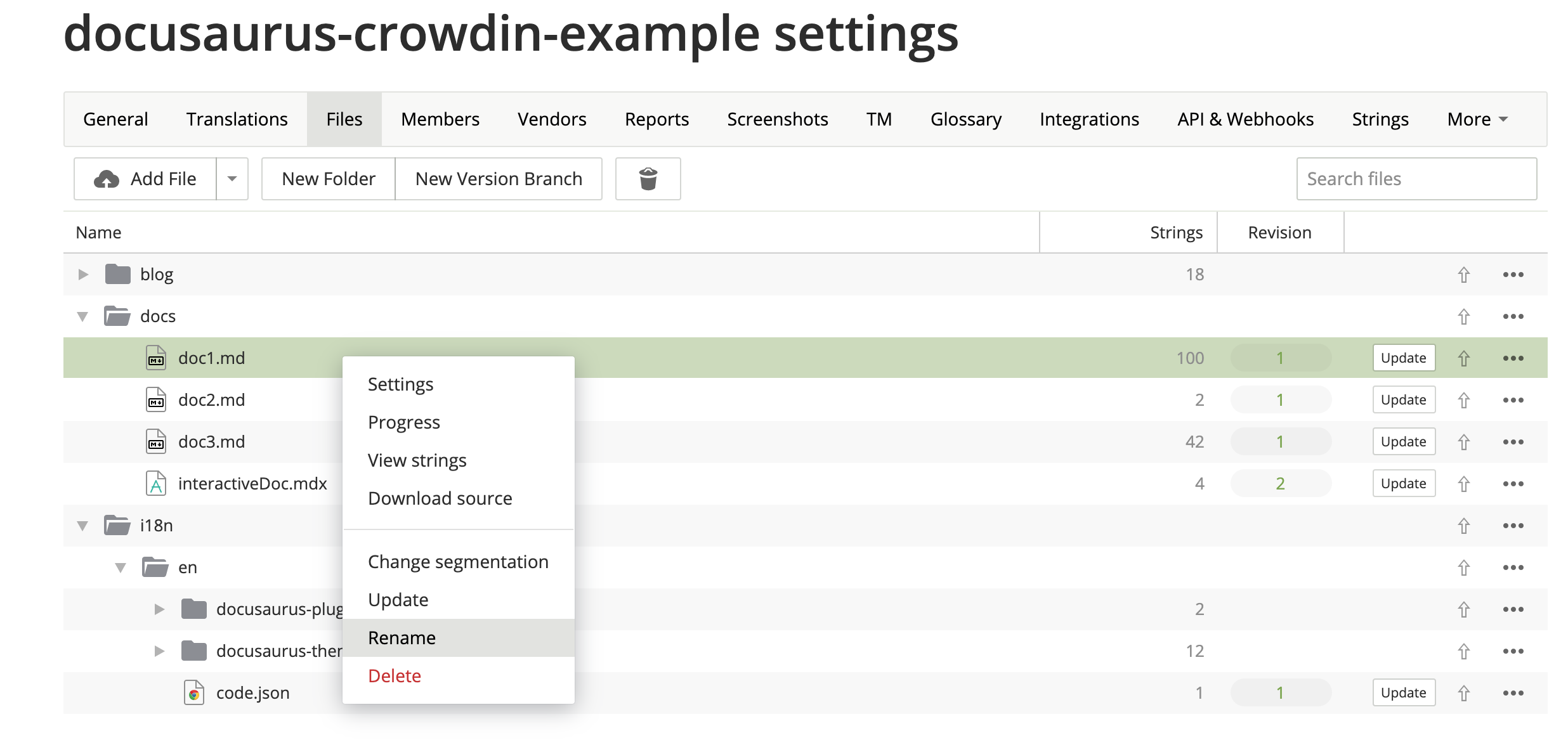
Section titled “Maintaining your site”Sometimes, you will remove or rename a source file on Git, and Crowdin will display CLI warnings:
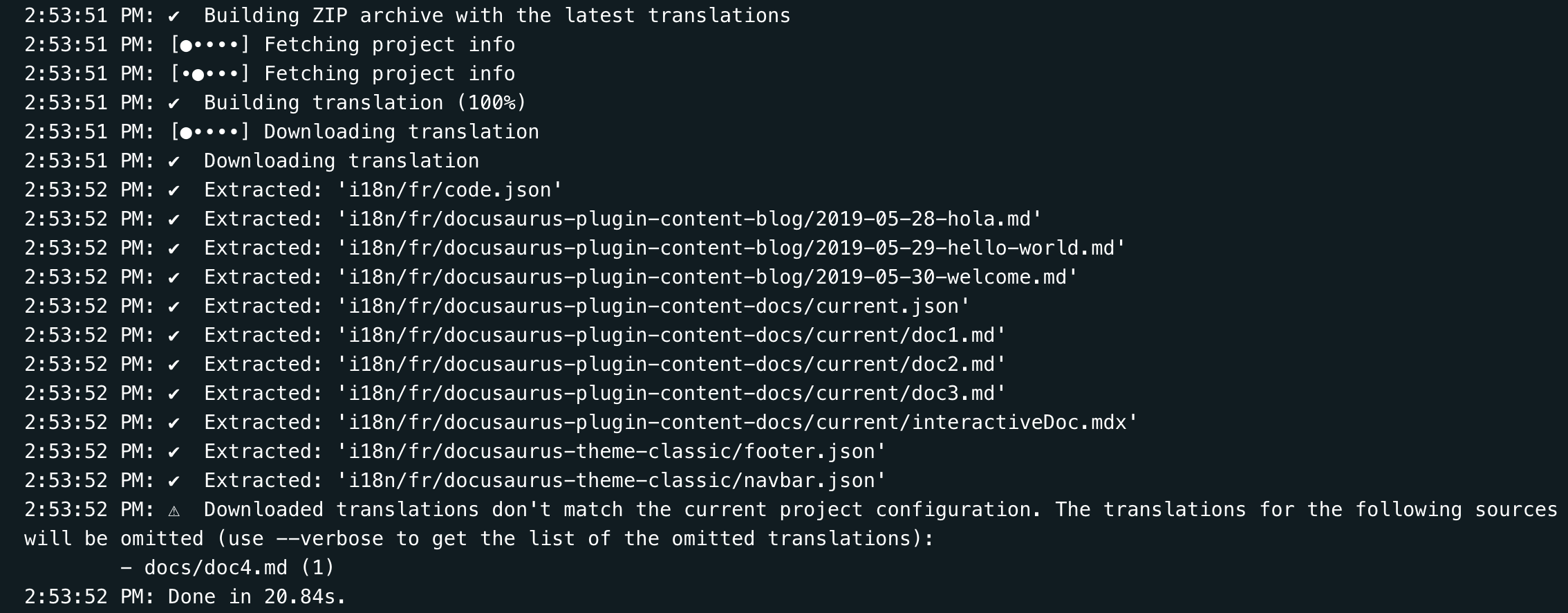
When your sources are refactored, you should use the Crowdin UI to update your Crowdin files manually:
VCS (Git) integrations
Section titled “VCS (Git) integrations”Crowdin has multiple VCS integrations for GitHub, GitLab, Bitbucket.
It could have been helpful to be able to edit the translations in both Git and Crowdin, and have a bi-directional sync between the 2 systems.
In practice, it didn't work very reliably for a few reasons:
- The Crowdin -> Git sync works fine (with a pull request)
- The Git -> Crowdin sync is manual (you have to press a button)
- The heuristics used by Crowdin to match existing Markdown translations to existing Markdown sources are not 100% reliable, and you have to verify the result on Crowdin UI after any sync from Git
- 2 users concurrently editing on Git and Crowdin can lead to a translation loss
- It requires the
crowdin.ymlfile to be at the root of the repository
In-Context localization
Section titled “In-Context localization”Crowdin has an In-Context localization feature.
Localize edit URLs
Section titled “Localize edit URLs”When the user is browsing a page at /fr/doc1, the edit button will link by default to the unlocalized doc at website/docs/doc1.md.
You may prefer the edit button to link to the Crowdin interface instead by using the editUrl function to customize the edit URLs on a per-locale basis.
const DefaultLocale = 'en';export default { presets: [ [ '@docusaurus/preset-classic', { docs: { editUrl: ({locale, versionDocsDirPath, docPath}) => { // Link to Crowdin for French docs if (locale !== DefaultLocale) { return `https://crowdin.com/project/docusaurus-v2/${locale}`; } // Link to GitHub for English docs return `https://github.com/facebook/docusaurus/edit/main/website/${versionDocsDirPath}/${docPath}`; }, }, blog: { editUrl: ({locale, blogDirPath, blogPath}) => { if (locale !== DefaultLocale) { return `https://crowdin.com/project/docusaurus-v2/${locale}`; } return `https://github.com/facebook/docusaurus/edit/main/website/${blogDirPath}/${blogPath}`; }, }, }, ], ],};Example configuration
Section titled “Example configuration”The Docusaurus configuration file is a good example of using versioning and multi-instance:
import CrowdinConfigV2 from '@site/../crowdin-v2.yaml' with {type: 'text'};
import CodeBlock from '@theme/CodeBlock';

<CodeBlock className="language-yaml" title="crowdin.yml">
  {CrowdinConfigV2.split('\n')
    // remove comments
    .map((line) => !line.startsWith('#') && line)
    .filter(Boolean)
    .join('\n')}
</CodeBlock>
Machine Translation (MT) issue: links/image handling
Section titled “Machine Translation (MT) issue: links/image handling”Crowdin recently rolled out some major changes to the markdown file format and now the links are treated differently than they were before. Before they were considered as tags, but now they appear as plain text. Because of these changes the plain text links are passed to the MT engine which attempts to translate the target, thus breaking the translation (for instance: this string Allez voir [ma merveilleuse page](/ma-merveilleuse-page) is translated Check out [my wonderful page](/my-wonderful-page), and this breaks docusaurus i18n workflow as the page name should not be translated).
As of 2023 Dec.7, they are not planning to change the logic of how links are treated, so you should have this in mind if you plan to use Crowdin with MT.